How It Works
How your book comes together
How It Works
How your book comes together
Creating your personalised storybook is a simple, guided journey — and it all starts with your child.
- Choose how you'd like to enjoy your book
Pick the format that suits you — something to read on screen, print at home, or hold in your hands as a keepsake. - Tell us about your child
Share a few special details — their name, interests, and the kind of story you'd love to create. This is what makes the story truly theirs. - Create their character
Upload a photo and choose an illustration style. We'll transform your child into a storybook character inspired by their unique look. - Watch their story come to life
We create a personalised story built around your child. You can review it and make small changes so it feels just right. - Bring the story into a visual world
Beautiful illustrations are created to match the story — with your child at the heart of every scene. - Finalise your book
Once everything looks perfect, we prepare your book in your chosen formats. - Keep it forever
Your finished book is ready in your library — to read, download, share, or order as a printed keepsake anytime.
Where can I see product options and bundles?
You can view all our product options and bundles on our products page.
Photo Guidance
Upload photos that give the best likeness
Photo Guidance
Upload photos that give the best likeness
What kind of photo should I upload?
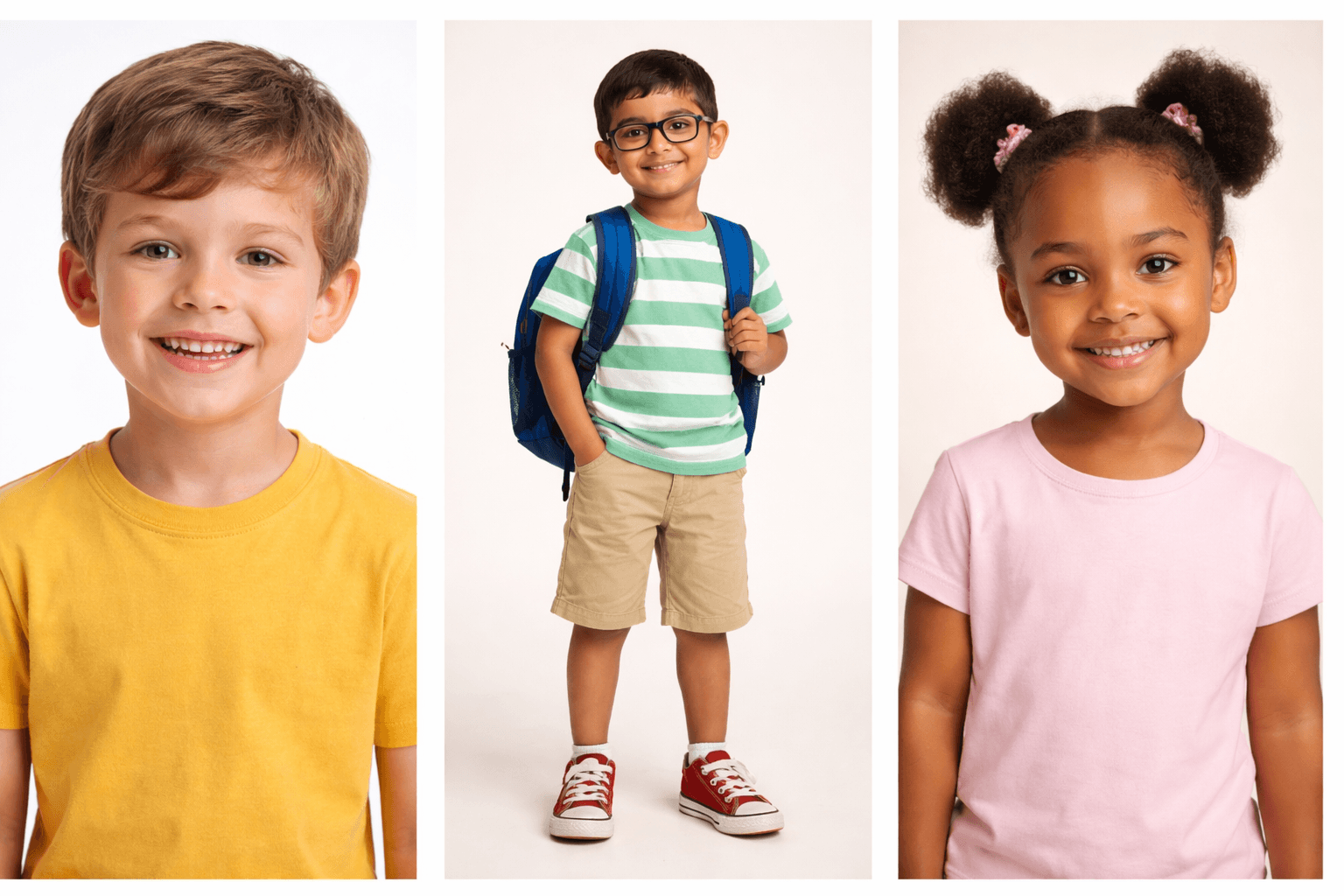
For the best results:
- Use a clear, well-lit photo
- Use a full-length photo when possible, or at least a waist-up photo if that's all you have
- If you want us to reference your child's outfit, include enough of the clothing for it to be seen clearly
- Choose simple, plain clothing where possible, because words, logos, and detailed graphics may not be reproduced correctly
This gives us the best chance of creating an illustrated character that feels like your child and helps us keep their outfit more consistent throughout the book.
What photos should I avoid?
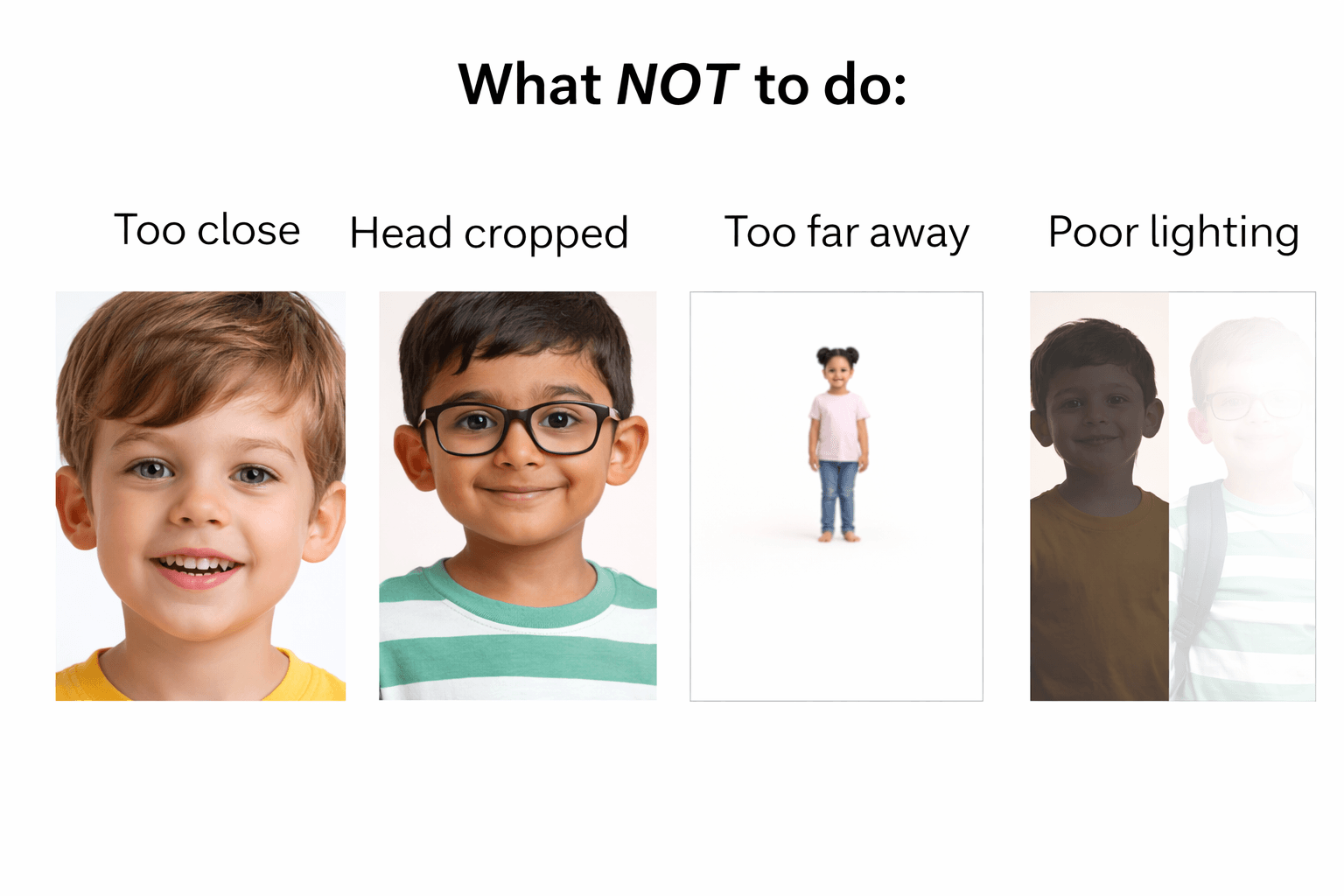
Try to avoid:
- Too close (face fills the frame)
- Head cropped (top of head cut off)
- Too far away (child appears very small)
- Poor lighting (too dark or too bright)
These make it harder for us to generate a strong, consistent character.
Will the character look exactly like my child?
Not exactly, but that's intentional — it helps bring your child into the illustrated world.
Our books are created using AI illustration, which means:
- Your child's illustrated character is based on their physical features and will resemble them in the style you selected
- Small variations can occur between pages
- Details like patterns, logos, or text on clothing may not transfer perfectly
Think of it as a storybook version of your child, not a photograph. It is generative artwork, so it may not always be an exact match.
Will the clothes stay the same throughout the book?
If you select "Use clothes in illustrations" on the character page, we'll try to keep the outfit consistent across scenes.
Some scenes may still require changes for the setting, such as adding a coat in a snow scene, and AI-generated illustrations can still introduce small inconsistencies.
Tips for the Best Results
Small checks that improve the final result
Tips for the Best Results
Small checks that improve the final result
When should I make story changes?
After your story is generated, you can use the suggestions to make changes before illustrations are created.
This is the best time to update things like the book title, character names, genders, story details, or even the language.
You can make up to 3 changes at this stage.
What if I mention a character I didn't add during setup?
If you mention a character in your story idea but do not include them in the character step, the system will make its best guess about what they look like.
If you want a parent, sibling, grandparent, or any other important person to look correct, add them as a character and upload their photo during setup.
Can I change the illustration style later?
Original stories let you choose an illustration style before generation, and that style is then locked for that book version. Personalised Story Collection books retain the original book's advertised illustration style.
Should I review the story before generating illustrations?
Yes. Read through the story carefully before generating illustrations to make sure the details are correct.
- Check character names
- Check genders and ages
- Check important story details and relationships
This is the easiest point to catch mistakes before visuals are generated.
What content is allowed?
Only child-appropriate content is allowed.
Attempts to include hateful language, violence, sexual content, or anything else unsuitable for young children will be blocked.
Repeated attempts to include forbidden content may result in suspension or removal from the platform.
Important Things to Know
AI limits, safety rules, and expectations
Important Things to Know
AI limits, safety rules, and expectations
Does AI ever make mistakes?
Yes. Occasionally you may notice:
- Small inconsistencies between pages
- Slight changes in facial features or clothing
- Minor layout differences
- Small differences between downloadable and app-based formats
We do our best to minimise this, but it's part of how generative AI works. Most format differences are minor, but some variation is unavoidable.
Can I use anything I want in the story?
No.
Please do not include:
- Copyrighted characters (e.g. specific famous heroes)
- Inappropriate, harmful, illegal, or offensive content
- Requests involving abusive, sexual, or otherwise unsafe material
If you do, your request may be rejected or adjusted.
Is MyStoryWorld.app responsible for the final output?
No.
By using MyStoryWorld.app, you agree that:
- The content is AI-generated
- Results may vary
- There may be inconsistencies or interpretation differences in text, art, or layout
- You are responsible for how you use or share the content
Full details are in our T&Cs and Privacy Policy.
Are Growing Up developmental stories clinically tested?
MyStoryWorld.app's Growing Up stories are guided by evidence-informed developmental frameworks drawn from child-development research, established educational approaches and guidance from recognised organisations. However, MyStoryWorld.app stories—and the way these frameworks are applied through personalised storytelling—have not been clinically tested or proven to produce particular developmental, behavioural or mental-health outcomes.
Our stories are designed to encourage age-appropriate reflection, conversation and skill practice during ordinary childhood experiences. They are not assessments, diagnoses, therapy, medical advice or substitutes for support from a qualified health, education or mental-health professional. Results will vary between children, and no individual story can guarantee developmental change. If you are concerned about a child's wellbeing, safety, behaviour or development, please seek advice from an appropriately qualified professional.
How do I change my analytics preferences?
Sign in and open your Profile. You can allow or decline website analytics at any time in the Analytics preferences section.
Orders & Changes
What can change and when it becomes locked
Orders & Changes
What can change and when it becomes locked
Can I edit my book after it's created?
No.
- Make changes before you finalise the book
- Once products are generated, the credits used for that generation are consumed
- Once finalised, changes cannot be made to that version
- If you want to make substantial changes after generation, it will need to be created as a new book
- Additional products for the same storybook can be purchased after the initial creation
What happens after I order a printed book?
- Your book is sent to our printing partner
- No changes can be made after submission
- You will receive updates via the email linked to your account
- Shipping and tracking are handled by the printer
For any shipping-related queries, please contact the print partner directly, as we are unable to assist with order fulfilment once the order has been placed.
We'll store confirmation once your print job is submitted.
Reading Your e-Book
Where to read and enjoy your finished book
Reading Your e-Book
Where to read and enjoy your finished book
Recommended: read in the MyStoryWorld app
The MyStoryWorld app is the recommended way to read your e-books and activity books. It is available on iPhone, iPad, Android phones, and Android tablets.
Log in with the same username and password you use on the website, and all of your e-books and activity books will be available in your library.
This gives you the complete reading experience for your MyStoryWorld library, including any narration and animations included with your eBook.


Can I read my books offline?
Yes. In the MyStoryWorld app, books and activity book PDFs that have finished downloading can be read offline while you remain signed in. Offline access does not expire after a set number of hours or days; it lasts until you sign out, delete the app data, or remove the download.
Books and PDFs that have not been downloaded need an internet connection before they can be opened. Avoid signing out while offline. Signing back in requires internet access, and any downloaded items on that device will stay unavailable until you sign in to the same account again.
Reading, narration & animations
Open your eBook from your library in the MyStoryWorld companion app. When narration or animations are included, the app makes those controls available inside the story and downloads the media for offline use.